What Desk Widgets does
Your desktop is the one screen you see every day and use for nothing. Desk Widgets puts the things you check all the time right there, under your windows: the time in the cities you care about, today’s weather, your Wi-Fi and volume, a photo you love.
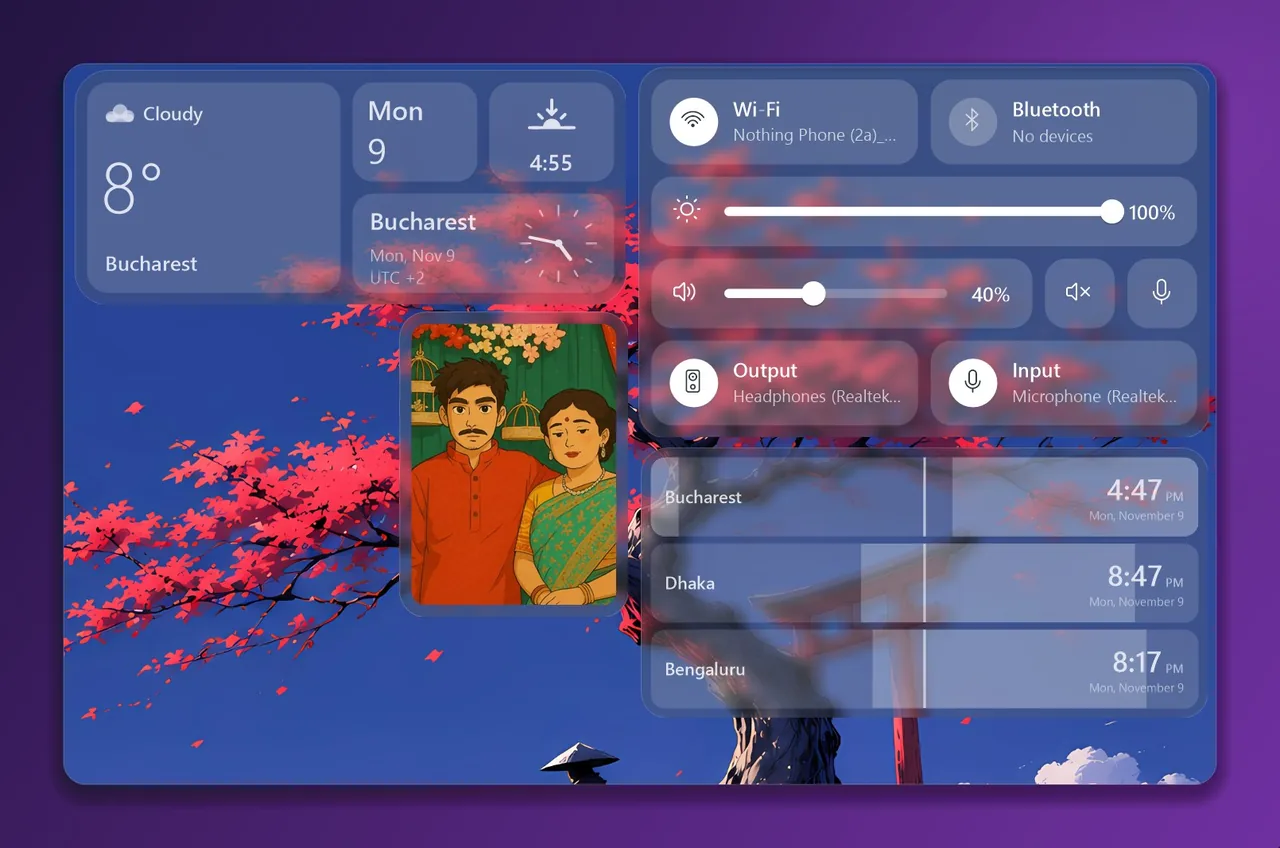
Nine widgets to choose from
Every widget comes in three looks: Dark, Light, or Vibrant, which shows your wallpaper softly blurred behind the card. They use very little memory, and they rest while your PC is locked.
Set it up in a minute
-
Download it
Click the download button. You get one file, DeskWidgets.exe. There is nothing to install, and it adds itself to the Start menu the first time.
-
Double-click the file
The Desk Widgets window opens, with the widgets grouped by type.
See “Windows protected your PC”? Click More info, then Run anyway. Windows shows this for small apps from independent makers. It doesn’t mean something is wrong.
-
Put widgets on your desktop
Drag a widget onto the desktop, or double-click it to drop it in the middle of the screen. Drag it to move it, and drag a corner to resize it.
For World Times and At a Glance, type part of a city or country name to pick it. You can rename any city, for example “Mom” or “Office”.
-
That’s it
Close the window: your widgets keep running. To have them back every time you turn on your PC, open Settings in the app and switch on Start with Windows.
Private by design
- No account, no tracking, no ads. Your settings stay on your PC.
- Only the weather goes online. At a Glance looks up the city you type once with the free Open-Meteo service, then sends only its map position every 15 minutes. Nothing else leaves your PC.
- Your photo is copied, not moved. Photo Card keeps its own copy, so deleting or moving the original doesn’t break it.
Want it on a USB stick? Download the portable version and unzip it anywhere. It keeps its settings in its own folder.
Removing it
- Open the app, go to Settings and switch off Start with Windows.
- Right-click the Desk Widgets icon next to the clock and choose to quit.
- Delete DeskWidgets.exe. To remove your settings and photos too, type %AppData% into the File Explorer address bar and delete the DeskWidgets folder.
Get Desk Widgets
Free, for Windows 10 and 11.
Download Desk WidgetsMade with love by Mogdho Paul, based on Desk Widgets by whoissaaif. Curious how it works? See it on GitHub.